

🚀 Quickstart
Embed Spaces in your app
1. Get your API key
If you haven’t yet got your API key, sign-up to one of our plans and view our guide here.
We do provide staging environments for testing - reach-out to us at https://pencilspaces.com/support if you’d like us to get that set-up for you.
2. Understand our data model
Learn more about our data model here. This will make it a lot easier to understand all the terminology in our documentation and help articles.
3. Pick a Redirect vs. iFrame integration
-
Redirect: Simplest to implement, highest reliability. However, users are redirected to Pencil Spaces on a new tab.
-
iFrame: Fully branded in-app experience, but comes with some reliability limitations on mobile devices and certain browsers. Details on how to best integrate via iFrame can be found here.
4. Set-up auto-authentication
Integrate with the following APIs:
-
/users/createAPIUser -
/users/USERID/authorize
This allows users in your application to join their Spaces seamlessly without creating any separate accounts or having to deal with logins.
The full flow should look something like this:
-
Create API users for each Space host and participant (if they don’t already exist) using
POST /users/createAPIUser. -
Create the Space with
POST /spaces/create. -
When a user clicks Join Classroom (or similar) in your application, generate an authorization token with
POST /users/USERID/authorize, passing the Space URL in theredirectUrlparameter. -
Take the
urlfrom the authorize response and either embed it in an iframe or redirect the user to it.
5. Configure Access Controls
Spaces can be:
-
Public - Anyone with the Space link can join the Space.
-
Private - Access is limited to specific users via a list of invited users
You can gate access depending on how you’re planning to integrate with Pencil Spaces. Remember, Spaces are designed to be durable and re-used multiple times across the course of a semester.
6. Adjust Institution Settings
Institution-level settings let you control how your users experience Spaces. These can be configured in the Admin Dashboard or through your Account Manager.
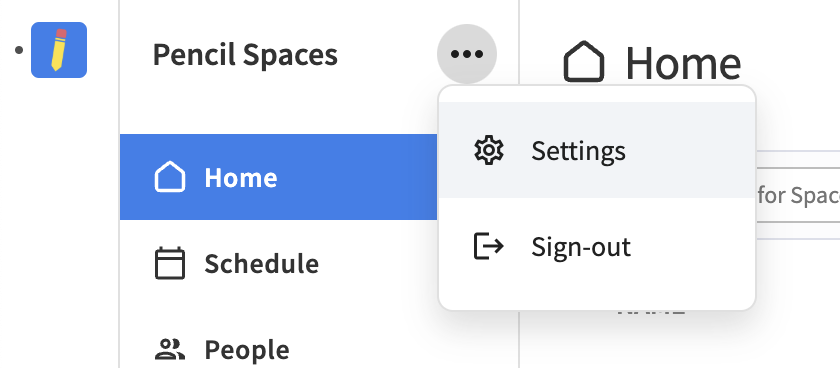
For example, you can configure:
-
Whether participants can enter a Space by themselves with Waiting Room permissions
-
Depending on your plan, there are a range of custom branding options to match your institution’s brand identity
7. Adjust Integration Preferences
Spaces are highly configurable so you can tailor the experience to your organization’s needs. You can set options in Space settings or via URL parameters added to your share links. For example:
-
startCall=true— Automatically starts a call when the first host joins the Space. -
standalone=true— Hides navigation that would take users back to the Spaces Manager, keeping them focused in the current Space. This is particular helpful if you are integrating via embedded iFrame. -
gv=true— Uses a Zoom-style grid/video layout by default (helpful if you’re migrating from platforms like Zoom or Whereby).
In Space settings, the Waiting Room toggle (enableWaitingRoom) controls whether participants can enter a Space without explicit Host approval.
For a complete list of available options and how to use them, see our full set of customizations here
Configure events and integrate webhooks
Once your Spaces are embedded and authentication is set up, the next step is to connect events and integrate real-time updates.
1. Show a session timer
You can display a session timer at the top of a Space by using the POST /events API to create an online event linked to your Space. This helps students and teachers stay aware of the time remaining during their class.
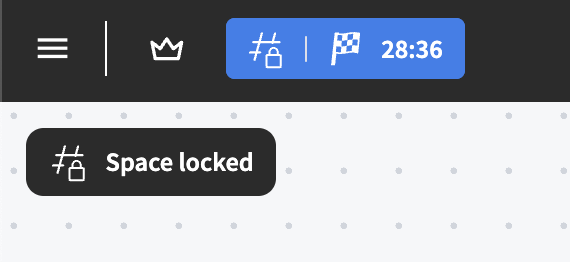
A few things to note:
-
By default, events can be extended by the host from inside the Space. This prevents the call from abruptly ending when the event ends. You can configure whether you want to allow events to be extended in Settings > Feedback (more details here).
-
When events are created, we send emails to the users associated with an event. Emails will not be sent to users who are created via API-based authentication. You can choose to disable emails entirely in Settings > API.
-
Attendance is tracked automatically when events are associated with a Space. You can learn more about attendance here.
2. Enable end-of-session feedback
Add an end-of-session redirect to collect structured feedback for a session. We will automatically include attribution details (e.g., which Space, which user, or which event) so responses can be tied back to sessions data.
3. Integrate webhooks
Use our webhooks to receive real-time notifications when activity occurs in a Space. Examples include:
-
A participant joining or leaving
-
Recording or transcript availability
This allows you to automate workflows (e.g., marking attendance, triggering notifications, or syncing data to your LMS).
4. Pull recordings or analytics data
Spaces automatically generate metadata you can access via our APIs:
-
/analytics/sessions: Retrieve a range of metrics on user engagement, as well as network and device data. -
/spaces/recordings: Access and manage session recordings for archival or review. This includes session transcripts and summaries. Recordings are almost always available within an hour after the session completes.
Best practices
We strongly recommend following these best practices to ensure a smooth and reliable integration:
-
Use a generic admin account for API keys
Actions made by an API key are tied to the account that generated it. Use a generic account (e.g.,[email protected]) to simplify access management and minimize downtime risks. -
Spaces and users are persistent
You do not need to create/delete Spaces for every session. Reuse Spaces across multiple sessions so students have a single link and record of all their work (e.g., for a full semester). -
Respect API rate limits
Limit API request volume to < 5 queries per second (QPS). Some queries (e.g., analytics) are slower and have stricter limits. Exceeding limits will return a429 Too Many Requestserror. -
Subscribe to our Status Page
Outages are rare but possible. Subscribing gives you live updates when incidents occur. You can find our status page here. -
Get support via Slack
If you don’t already have a shared Slack channel with the Pencil Spaces team, contact your Account Manager. Shared channels provide direct access to engineers if anything goes wrong.
🎉 That’s it — your integration is ready. Developers typically get from zero to live classrooms in under 1 hour. And, of course, if you ever run into any problems, do not hesitate to contact us at pencilspaces.com/support
Updated 22 days ago